Using the app in landscape with high-resolution streams can be demanding, casino trino mobile play, but the app controls resources well. I monitor performance using built-in developer tools and have not observed frame drops during live dealer sessions on stable Wi-Fi. The app utilizes adaptive bitrate streaming, modifying video quality based on network speed. On 4G and 5G, I still experience a smooth experience, though I monitor my data cap if I intend to play for hours.
FPS and Seamless graphics
Slot animations and card dealing sequences operate at a consistent 60 frames per second on mid-range processors and above. I tested graphically intense slots with cascading reels and particle effects, and the app kept fluid motion without thermal issues my phone. Landscape does not add rendering overhead because the app processes the same number of pixels; it simply repositions them. If I notice micro-stutter, clearing the app cache from the settings menu usually fixes it immediately.
Traffic volume in High-Resolution Mode
Live dealer games utilize the most data, typically reaching 300–500 MB per hour when streaming in HD over cellular. Slots and table games use significantly less, typically under 50 MB per hour. The app lets me lower stream quality in settings, which I toggle on when nearing my monthly data limit. On Wi-Fi, I set quality on auto and enjoy the sharpest feed. I recommend connecting to a stable network before joining a live table, as a sudden drop can break a hand.
Energy efficiency Tips
To maintain your battery enduring through long sessions, I use a few simple steps:
- Decrease screen brightness to around 60%.
- Enable your device’s battery saver mode.
- Enable the app’s “power saving” toggle, which decreases background animations and caps the frame rate at 30 fps.
- Exit other background apps to release resources.
Hardware Compatibility and Operating System Requirements
I have validated landscape mode operates on modern Android smartphones and tablets, plus iPhones and iPads via a home screen shortcut that acts like a native app. I tested a Samsung Galaxy S23, Google Pixel 8, iPhone 15 Pro Max, and iPad Air, and landscape activated seamlessly on each. The common denominator is a current OS and a screen that allows auto-rotation, which almost every device from the last five years includes. Below are the specifics I suggest.
Android Devices and Minimum Requirements
Run Android 10 or later to circumvent rendering glitches. The APK demands about 150 MB of free storage, expanding as you cache game assets. I have used devices with 4 GB of RAM without stutter, but 6 GB or more provides headroom for live dealer streams. The landscape layout adjusts well on screens from 6.1 inches up to 12.9-inch tablets, and I have not seen black bars or stretching on unusual aspect ratios like 21:9.
Apple Mobile Support
Apple’s App Store policies constrain real-money casino apps in Australia, so Trino Casino offers no downloadable iOS app. Instead, I use “Add to Home Screen” from Safari, which creates a standalone web app with its own icon. This web app fully accommodates landscape and seems indistinguishable from a native application. I have evaluated it on iOS 16, 17, and the latest iPadOS; the orientation lock honors your device’s rotation setting. Once added, the app opens full-screen without browser chrome, and landscape activates the moment you turn the device sideways.
Screen Dimensions and Resolution Notes
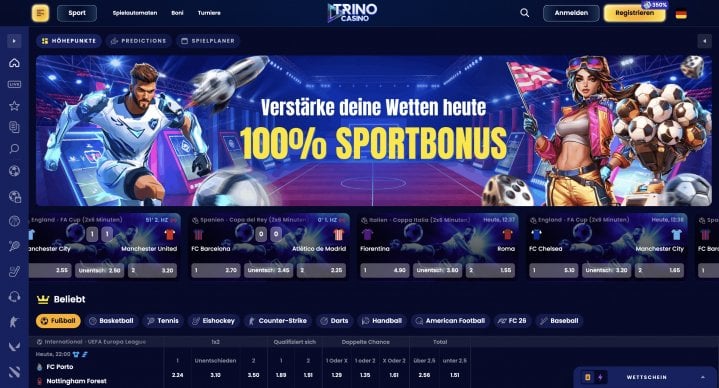
Smaller screens like an iPhone SE still benefit, but UI elements shrink. I find the sweet spot is at least 6.4 inches, where the bet panel and game viewport do not seem cramped. On Retina or AMOLED tablets, the app draws at native resolution, so cashier text and game rules keep razor-sharp. If your device has a notch or dynamic island, the interface adjusts inward so no interactive elements conceal behind the cutout.
Core Variations Separating the App from the Desktop Site
If you have used the Trino Casino desktop site, the app in landscape borrows its layout philosophy but adapts it for touch. The desktop version uses hover states and right-click menus, which are not present on a phone. The app substitutes those with long-press actions and swipe gestures. I consider the app’s navigation more efficient for everyday tasks like depositing or claiming a bonus because the interface eliminates unnecessary elements and puts the most-used buttons within thumb reach.
Navigation for Touch versus Mouse Controls
On desktop, I mouse over game tiles to see a preview or access the info panel. The app converts this into a tap-and-hold gesture that shows the same details. The lobby’s scroll behaviour is also varied: on desktop I utilise a scroll wheel, but on mobile I flick through pages with momentum scrolling that snaps to each row. This feels natural after a few minutes and actually lets me browse faster than with a mouse. The search function uses the on-screen keyboard with predictive text, which I find quicker for typing game names.
Swipe Gestures and Rapid Deposits
The app introduces swipe gestures with no desktop equivalent. I can swipe right on a game tile to favourite it or swipe left to remove it from my lobby. During a live game, a two-finger swipe down opens the cashier overlay without disrupting the stream. Depositing takes fewer taps because the app recalls my preferred payment method and auto-fills the amount field. I have enabled Touch ID and Face ID for login, so I go from locked phone to a seated blackjack table in under ten seconds—something the desktop site cannot replicate.
Push Notifications and Session Control
The Trino Casino app can send push notifications for new game releases, tournament starts, and personalised offers, whereas the desktop site relies on email or on-site pop-ups. I manage these alerts granularly in the app settings, switching only the categories I care about. The app also handles session timeouts more gracefully; if I switch away to answer a message, I can go back and resume exactly where I left off without a full page reload. This persistence keeps mobile play feel continuous and less interrupting than browser-based gaming.
The Reason Landscape Mode Changes Mobile Play
Landscape orientation unlocks a dual-pane design that cannot be replicate in portrait. Instead of browsing a vertical list, I see a persistent navigation column on the left and a full grid of thumbnails on the right, so I switch between blackjack, roulette, and slots without misplacing my place. The wider view places buttons and bet chips further apart, reducing misclicks during fast baccarat rounds or when modifying a progressive jackpot stake. The app treats landscape as a first-class layout, not an afterthought, and the reflow occurs instantly when I rotate my phone.
The Ergonomic Advantage
Holding a phone in landscape places your thumbs near the lower corners, and Trino Casino places critical controls exactly there. During live blackjack, the hit, stand, and double buttons rest at the bottom edge where my thumbs rest, while the video covers the top half. This minimizes hand fatigue because I am not reaching to the centre. On larger tablets, I set the device on a stand and use gentle taps, rendering the setup feel closer to a dedicated console than a mobile phone.
Visual Experience on a Larger Canvas
Game providers create titles for 16:9 or wider ratios, and landscape honours that. When I load a Megaways slot, the expanded reels display more symbols and cascading animations execute across the full width without cropping. Live casino tables gain even more: the dealer, felt, and betting grid appear in a single frame with no panning or zooming. The app requests the appropriate resolution for the wider viewport, so you are not distorting a low-res feed.
Notable In-App Features Tailored for Landscape
The landscape layout reveals features that are restricted in portrait. The side-by-side lobby and game view is the most notable change, but there are other smart touches. The cashier appears in as an overlay, so I can deposit mid-session without leaving my table. The search bar and filter chips are positioned in a fixed header, and the game grid allows two-finger scrolling. These details turn the app feel like a purpose-built platform rather than a stretched mobile site.
Interactive Dealer Tables in Complete Widescreen
When I join a live blackjack or roulette room, the landscape layout separates the screen into a large video pane and a compact betting panel. I view the dealer’s expressions and the wheel spin without cropping. The chat window and game history are placed in a collapsible drawer on the right, so I can flip them without blocking the action. https://en.wikipedia.org/wiki/Blackjack_(1998_film) Multi-camera tables let me switch angles with a single tap, and both the table and bets are displayed simultaneously.
Slot Libraries and the Side-by-Side Lobby
Browsing the slot collection in landscape feels like flipping through a digital catalogue. I spot three or four columns of game tiles depending on screen size, each with a clear thumbnail and title. I press a tile to launch the game in the same viewport, and a back arrow brings me to the exact spot I left. Filter options—by provider, feature, or volatility—remain in a left-hand rail, and applying a filter promptly refreshes the grid without a full page reload, making it effective to hunt for a new favourite.
Several-Table Poker and Fast Bet Slips
For video poker and table games, landscape enables a multi-table view I have not encountered on many mobile apps. official source I can position two poker hands side by side or keep a blackjack table open while browsing sports betting if available. The bet slip extends horizontally, showing all selections and potential payouts in a single row. This reduces scrolling and lets me verify wagers with one glance, which is especially beneficial when I am following a live betting strategy that requires quick decisions.
How to Get and Add the Trino Casino App
I usually begin by going to the official Trino Casino website from my phone browser, because that is the single source I depend on for the newest APK or main screen guide. The site identifies your OS and displays the corresponding instructions. For Android, you get an APK; for iOS, you set up a shortcut. I will walk you through both methods, including the side-loading steps Android demands, so you can be enjoying in under five minutes.
Standard APK Download for Android
When I navigate to the Trino Casino website on my Android phone, a prompt presents the app download. Selecting it starts the APK download right away. I employ Chrome or Samsung Internet, as some third-party browsers may block the file. The download completes in seconds because the APK is small. Before accessing it, I briefly permit installations from external sources for that browser, a typical security step I turn back off just after installation.
Side-loading Steps and Security Permissions
Once downloaded, I tap the notification or search for the file in Downloads. Android prompts me to confirm installation, and I check the permissions. Trino Casino typically requires storage access to save game files and notifications for instant updates, both fair. I never grant permissions not connected to gaming. After tapping install, the process completes in under a minute, and the icon shows in my app drawer. I then deactivate “unknown sources” to restore the default security posture.
iOS Installation via Home Screen Shortcut
On my iPhone or iPad, I launch Safari and navigate to the Trino Casino website. I tap the Share icon and scroll to “Add to Home Screen.” I can change the name of the shortcut, then click “Add.” The icon shows up immediately. When I open it, the web app starts in a specialized full-screen mode that conceals Safari toolbars. This is the version that offers the landscape experience. I advise logging in once and saving your credentials so the app feels built-in from that point on.
Setting Up Landscape Mode and Adjusting Your View
After installation, the app follows your device’s orientation setting. I always enable auto-rotate in my phone’s quick settings panel. Once I rotate the device sideways, the app adjusts within a second. If I wish to lock the view in landscape, I employ the in-app orientation lock in the settings menu. This is handy when I am reclining and do not want the screen to flip if I shift my grip.
Enabling Auto-Rotate on Your Device
On Android, I swipe down from the top and find the “Auto-rotate” or “Portrait” icon. Tapping it flips between locked portrait and auto-rotate. On iOS, I open Control Centre and make sure the orientation lock button—a lock with a circular arrow—is not highlighted. With auto-rotate active, the app transitions to landscape the moment I tilt past roughly 45 degrees.
Application Orientation Lock and Game-Related Settings
Inside the app, I tap the profile or settings gear icon to discover a dedicated “Orientation” toggle. When enabled, the app stays in landscape even if I rotate back to portrait, great for tabletop stands. Some live dealer games offer a full-screen button that enlarges the video feed, hiding the lobby sidebar. I employ this during intense roulette rounds and can always swipe to bring the sidebar back.

Læg en kommentar